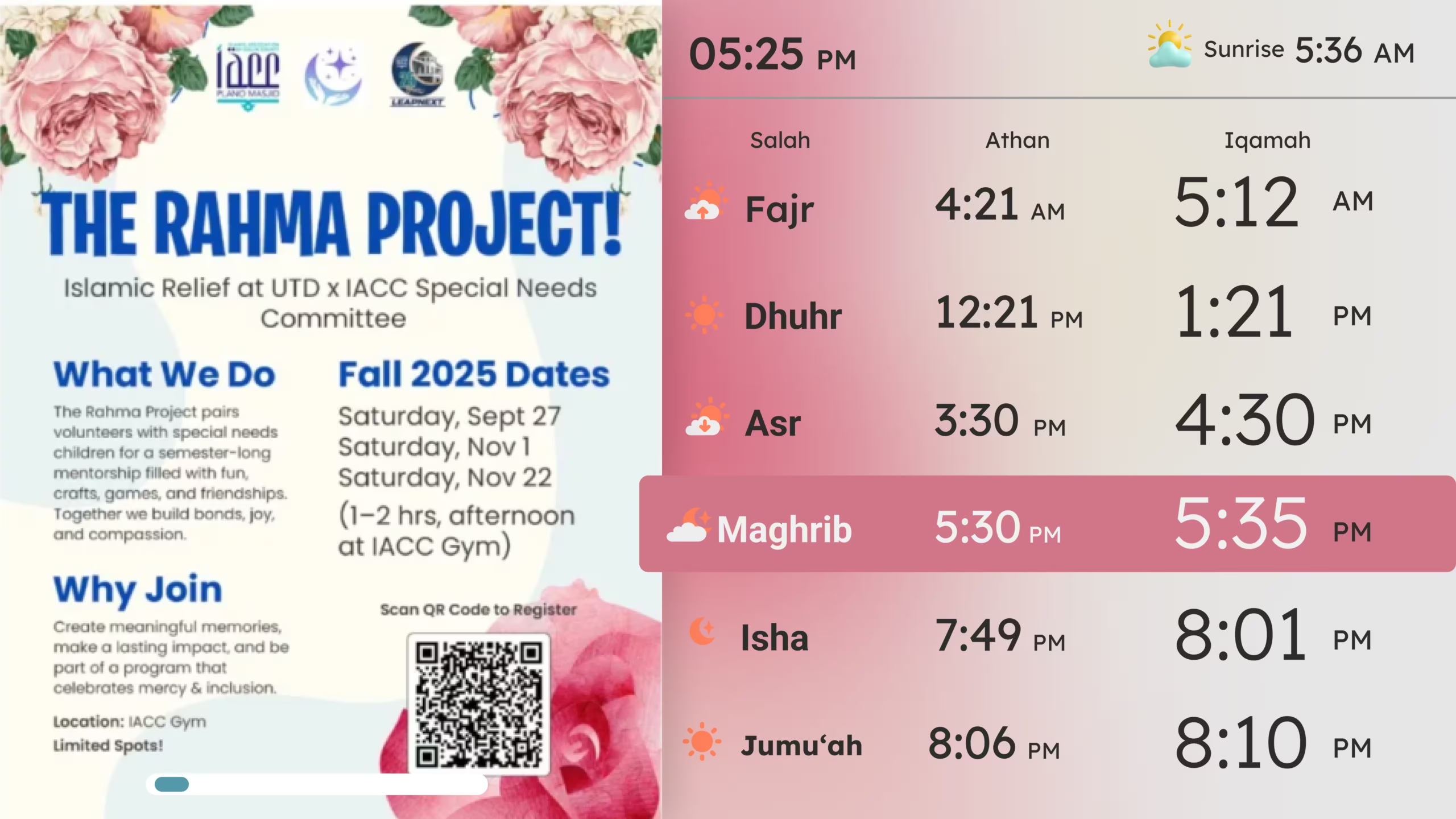
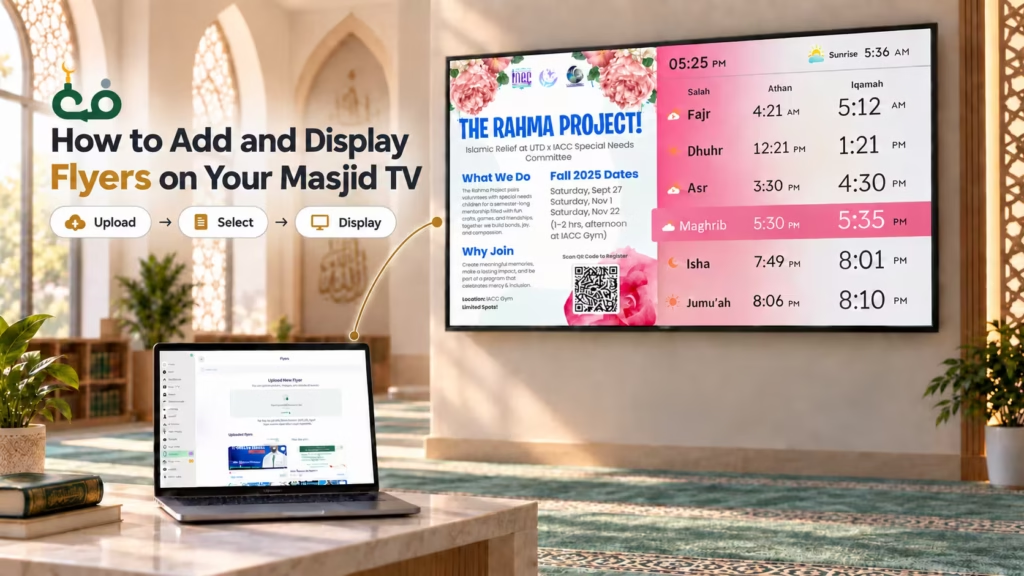
Flyers allow your masjid to display event posters, fundraising campaigns, class notices, community announcements, and other visual information directly on connected CMZ TVs.
This guide explains the complete process: preparing and uploading a flyer, activating it, choosing which TV should display it, adjusting its display duration, managing existing flyers, and fixing common display problems.
CMZ Flyer Upload Requirements
Before you upload
Prepare Your Flyer for the Best TV Display
Before uploading a flyer to your TV, confirm the following:
✓The TV is already paired with your entity’s CMZ account via the CMZ Admin Portal.
✓Your flyer is saved as a JPG, PNG, or WebP image.
✓The image file is no larger than 10 MB.
✓The flyer uses dimensions suited to the selected TV theme.
Recommended flyer sizes
Flyer format
Recommended dimensions
Frame Flow Landscape
1920 × 1280 px
Still Cast Portrait
1080 × 1260 px
iUsing the recommended aspect ratio helps the flyer fit its display area correctly and reduces unwanted cropping, stretching, or empty space.
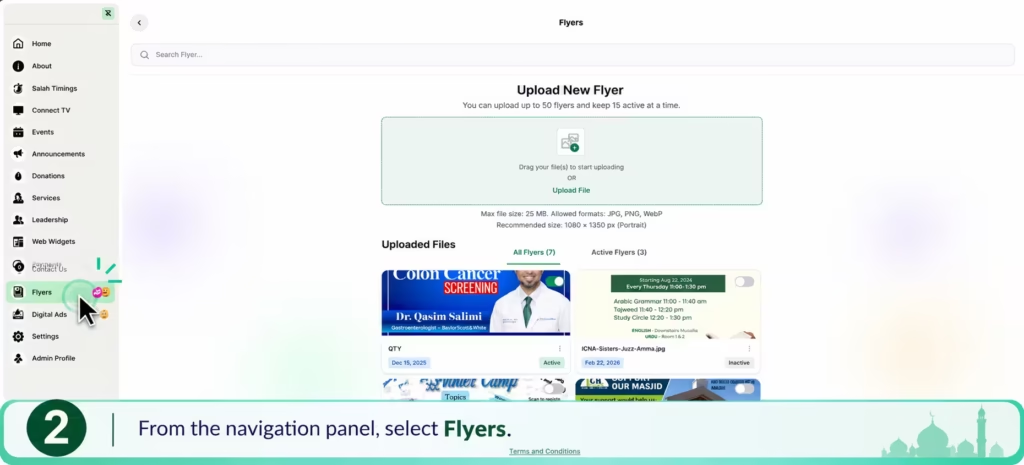
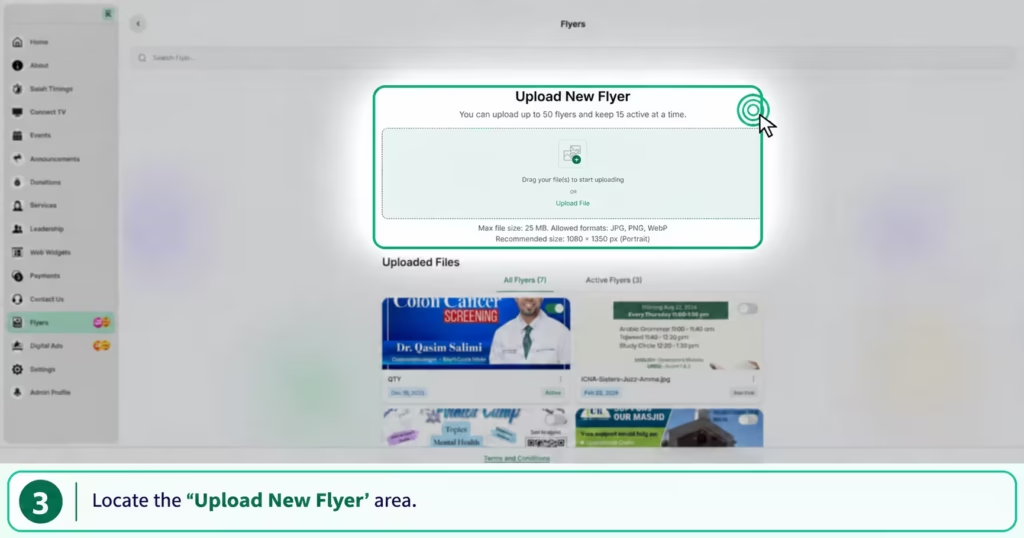
1. Upload a flyer
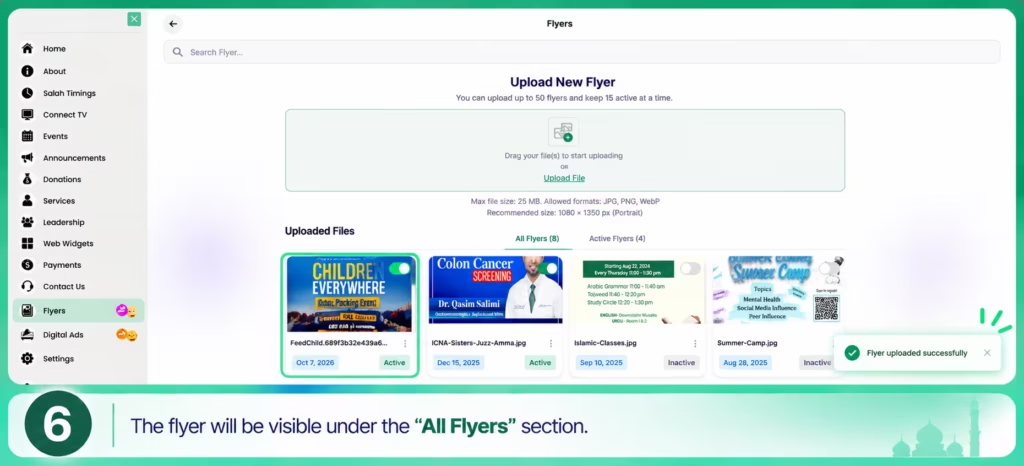
First, add the flyer to your entity’s flyer library in the CMZ Admin Portal. You can upload up to 50 flyers and keep 15 active at a time.
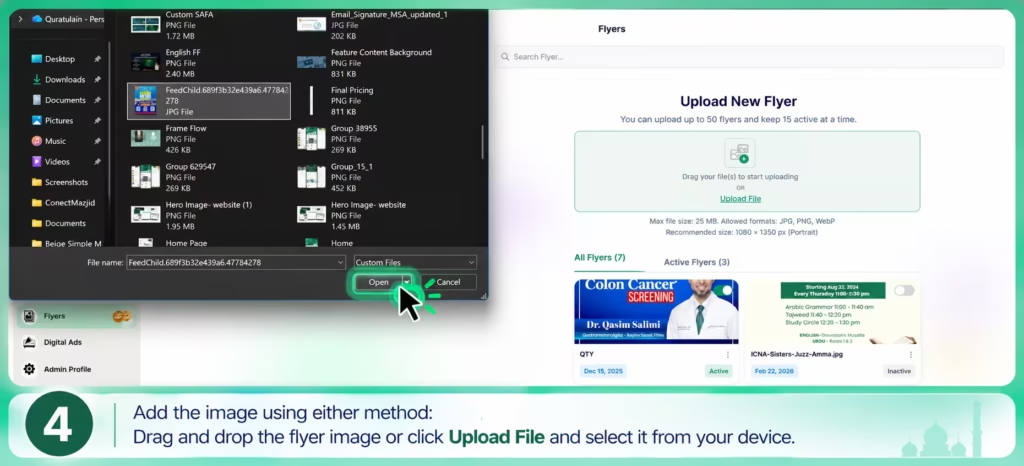
Drag the flyer image from your computer and drop it into the upload area.
Select Upload File, locate the image on your device, and select it.
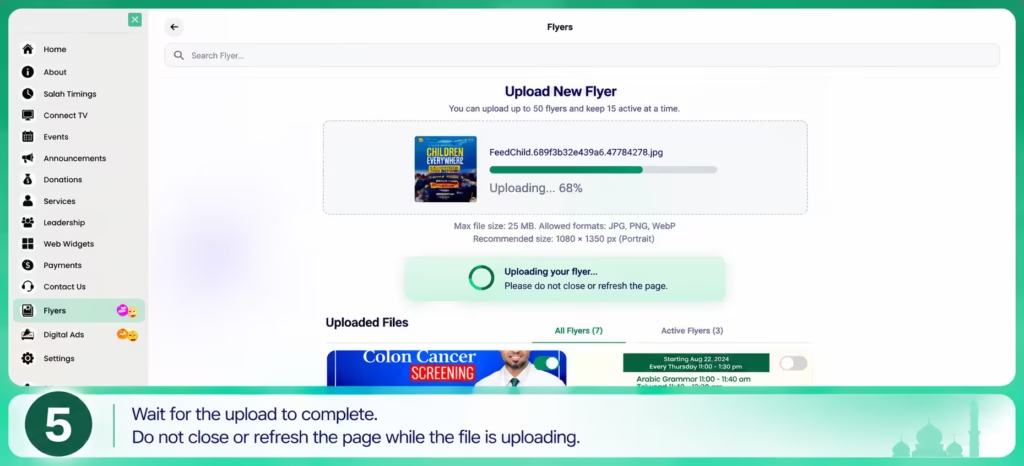
5.Wait for the upload to complete. Do not close or refresh the page while the file is uploading.
6. The flyer will be visible under the “All Flyers” section.
2. Check whether the flyer is active
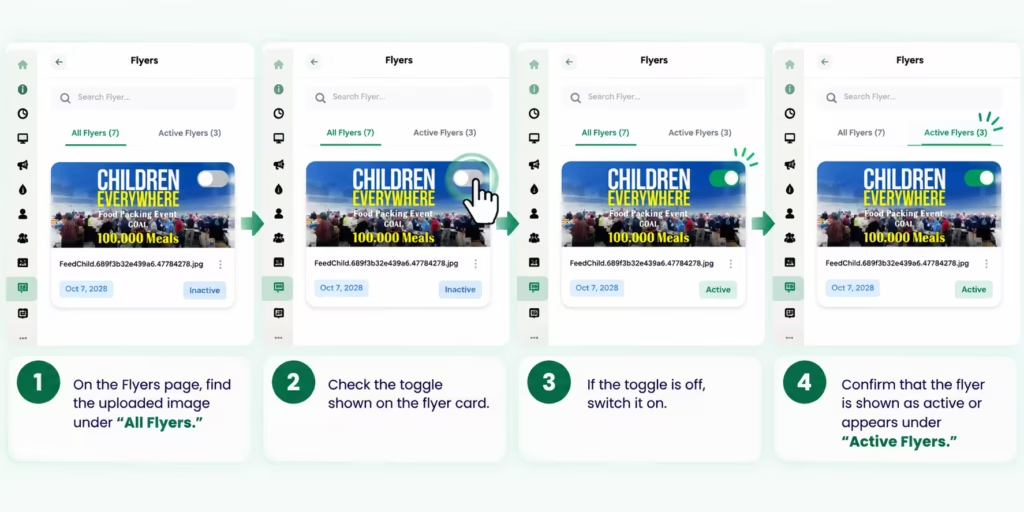
A flyer must be active before it can be selected for display on a TV.
On the Flyers page, find the uploaded image under All Flyers.
Check the toggle shown on the flyer card.
If the toggle is off, switch it on.
Confirm that the flyer is shown as active or appears under Active Flyers.
Note: Newly uploaded flyers are activated automatically. You normally need to use the toggle only when reactivating an older flyer or deactivating a flyer you no longer want available for TV display.
Activating a flyer adds it to the set of flyers that can be selected for connected TVs. The flyer will appear on a particular TV only after Flyers is enabled and the flyer is selected in that TV’s settings.
3. Select flyers for a specific TV
After activating the flyer, assign it to the required TV. This is especially important when your entity has multiple connected TVs and each display needs different content.
Click the GIF to enlarge it, or use the controls to zoom in and out.
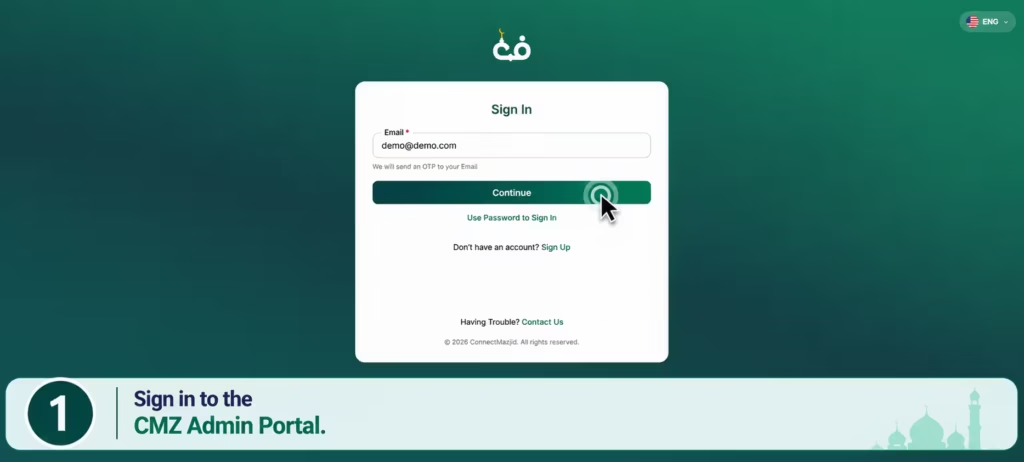
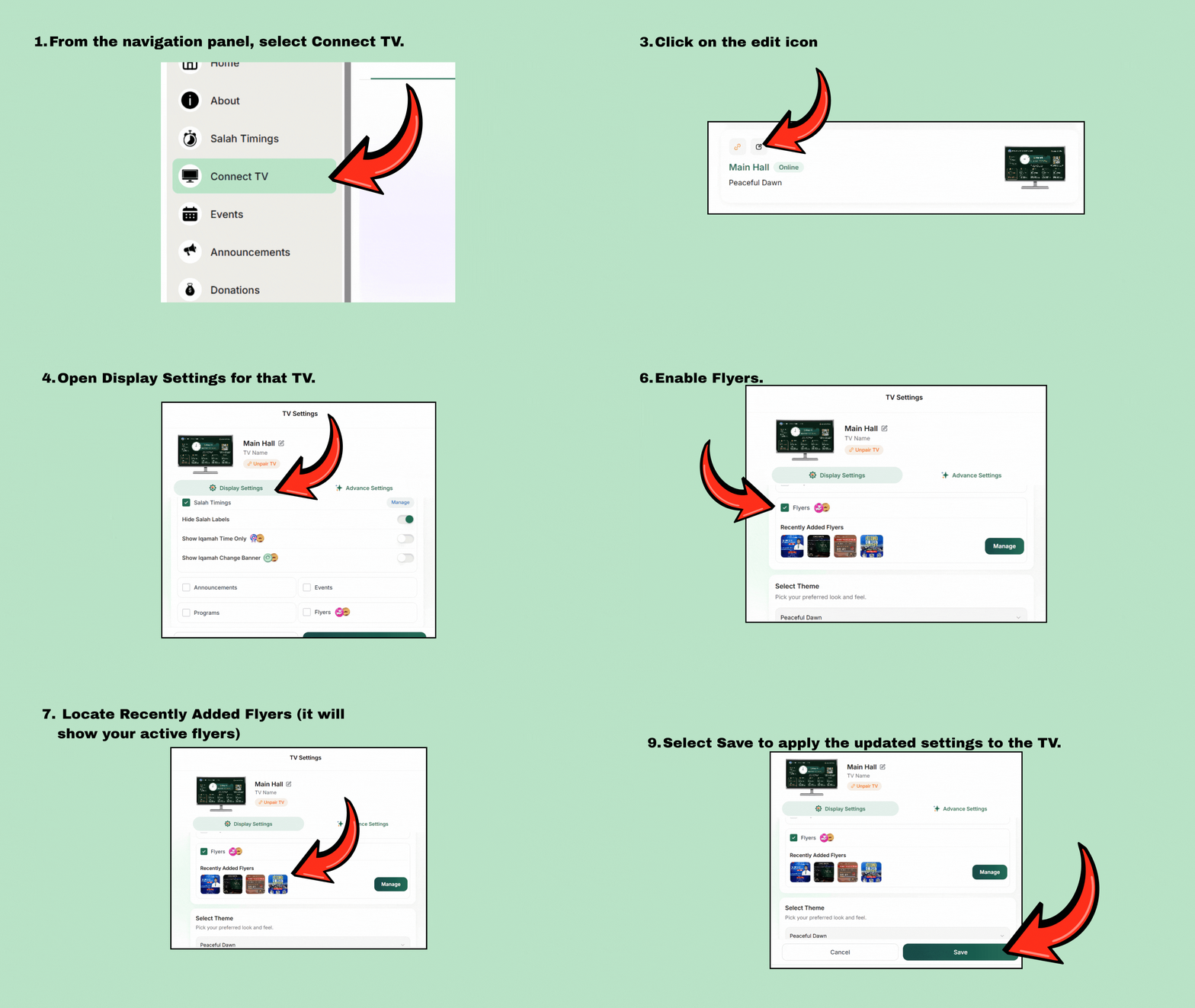
From the navigation panel, select Connect TV.
Find and select the connected TV you want to configure (pair the TV if haven’t done already)
Click on the edit icon
Open Display Settings for that TV.
Find the Select Slides section.
Enable Flyers.
Locate Recently Added Flyers (it will show your active flyers)
Choose each active flyer that should appear on this TV (Select Manage beside Flyers if your required flyer isn’t visible or you want to upload more flyers)
Select Save to apply the updated settings to the TV.
Repeat these steps for any other connected TV that should display the flyer.
Important: Activating a flyer makes it available for selection. It does not automatically assign that flyer to every connected TV.
4. Set how long the flyer appears
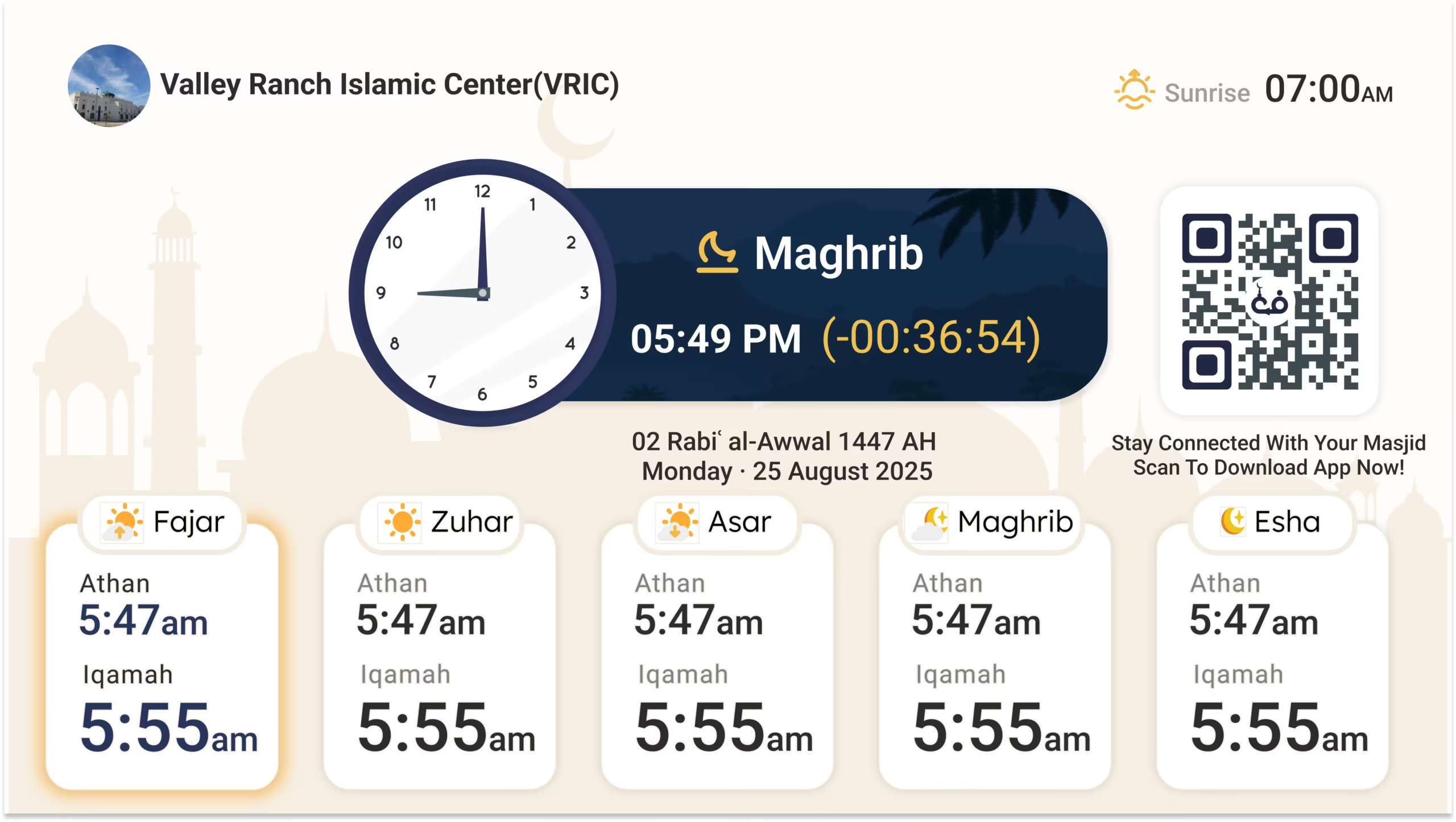
The Slide Duration setting applies to all the themes Peaceful Dawn, Luminous, Harmony, FrameFlow and StillCast.
Learn how to set the display duration for flyers on your CMZ TV.
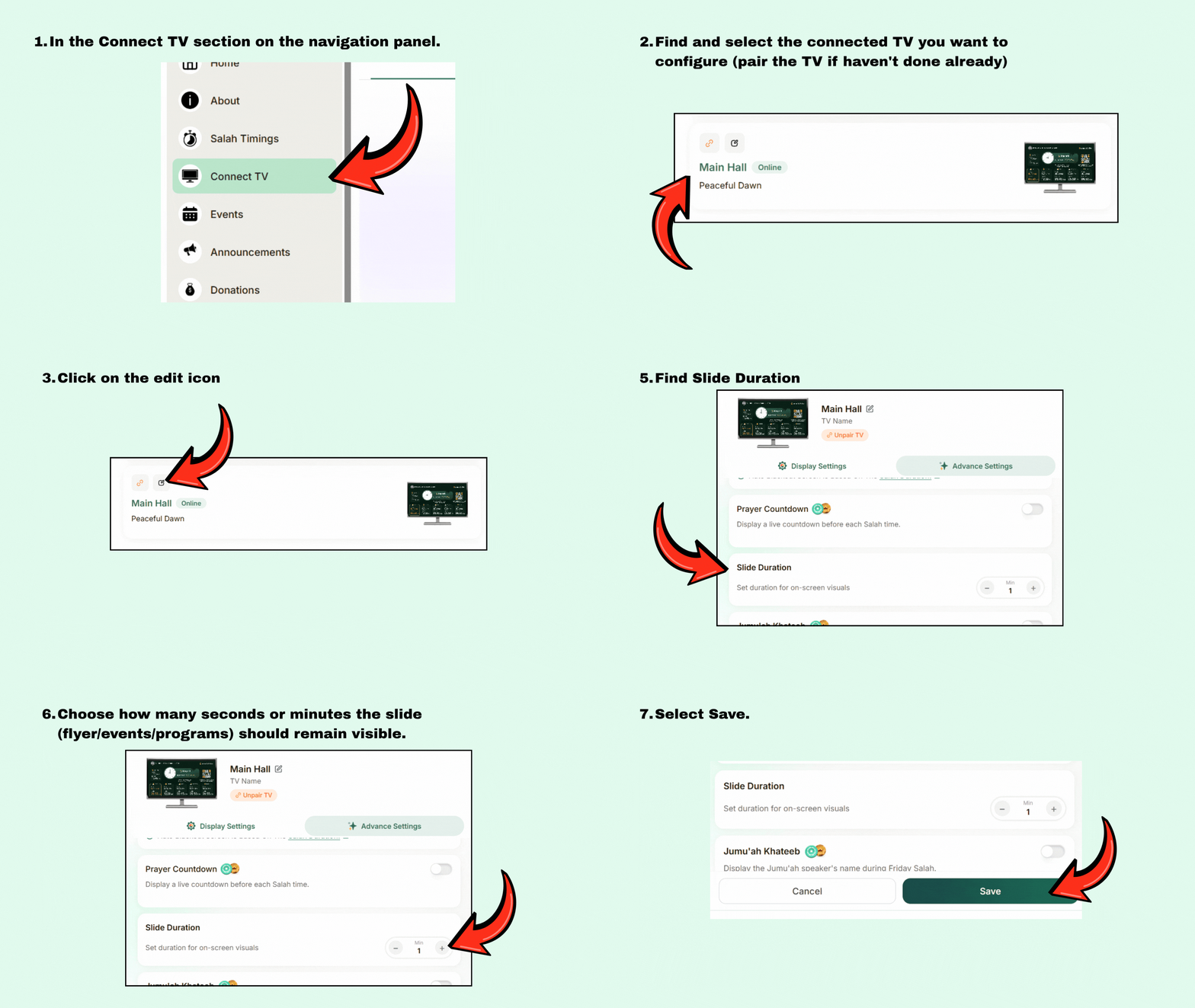
In the Connect TV section on the navigation panel.
Select the TV you want to configure.
Navigate to Advanced Settings (besides Display Settings).
Find Slide Duration.
Choose how many seconds or minutes the slide (flyer/events/programs) should remain visible.
Select Save.
How Slide Duration Works
How Slide Duration Works
The selected duration controls how long each item stays on the TV before the next item appears.
i
Important: The duration applies to the Salah timings slide and every selected flyer in Salah-only themes. In Slide + Salah themes, it applies only to the flyer slides while Salah timings remain visible.
Salah-only theme
Each screen gets 10 seconds.
Peaceful Dawn
Salah10 sec
›
Flyer 110 sec
›
Salah10 sec
›
Flyer 210 sec
›
Salah10 sec
›
Flyer 310 sec
↻ Then the rotation repeats
Click “Play rotation” to preview
Salah timings and flyers appear one after another.
Slide + Salah theme
Each flyer gets 10 seconds.
Still Cast
Flyer slides rotate inside the slide area
Flyer 110 sec
›
Flyer 210 sec
›
Flyer 310 sec
↻ Then the rotation repeats
✓ Salah timings stay visible throughout
Click “Play rotation” to preview
Only the flyer area changes; the Salah timings remain on screen.
5. Understand how the selected theme displays flyers
The appearance and placement of a flyer depend on the theme selected for that TV.
Display type
Supported themes
Flyer behavior
Full screen
Peaceful Dawn, Luminous, Harmony
The flyer appears as a separate full-screen slide in rotation with the Salah timings slide.
Split screen
Frame Flow, Still Cast
The flyer appears beside the Salah information rather than replacing the entire screen.
6. Manage an existing flyer
You can rename, view, replace, deactivate, or delete a flyer without uploading a completely new library of the flyers.
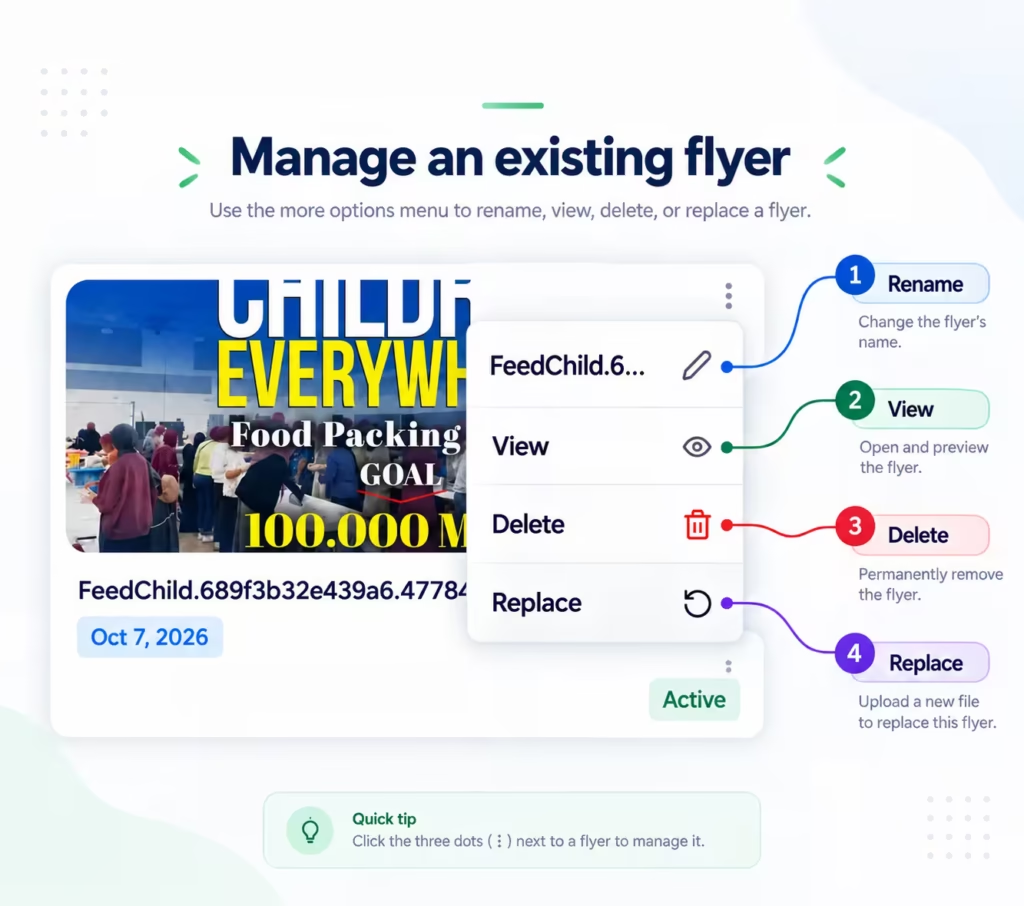
Open Flyers, find the required flyer card, and select its three-dot menu. Depending on the action you need, use one of the following controls:
Rename: Select the pencil icon beside the flyer name, enter the new name, and save it. A clear name makes the flyer easier to identify later when assigning it to a TV.
View: Open the flyer image to inspect its content and image quality.
Replace: Upload a different image in place of the current flyer. This is useful when a poster has been corrected or updated.
Activate or deactivate: Use the card toggle to control whether the flyer is available for display.
Delete: Permanently remove the flyer from the Flyers list when it is no longer needed.
Important: Deactivating and deleting are different actions. Deactivating a flyer does not remove it from All Flyers. You can activate it again later. Deleting removes it from the flyer library permanently.
CMZ Flyer Troubleshooting
? Flyer support
What to do if your flyer does not appear
Run through these checks in order. Most display issues can be fixed by confirming the flyer status, TV assignment, and saved slide settings.
⚙
Start with the first checkComplete each check as you go.
1
Confirm that the flyer is active
Open Flyers, find the flyer under All Flyers, and make sure its toggle is on. An inactive flyer cannot be selected for display.
2
Confirm that you selected the correct TV
Open Connect TV and check the name of the TV you are editing. With multiple displays, the flyer may be assigned to another TV.
3
Make sure Flyers is enabled
Open the selected TV’s Display Settings. Under Select Slides, confirm that Flyers is enabled.
4
Save the settings again
After checking the selection, select Save. Leaving the page without saving may discard the changes.
5
Check the TV’s internet connection
Make sure the TV is connected to the internet so CMZ can receive updated content and settings.
6
Wait for the current rotation
With a full-screen theme, allow the current Salah timings slide and other flyers to finish. Your flyer appears when its turn is reached.
7
Restart the CMZ TV app
Close and reopen the CMZ TV app, then wait for the content to load. For browser displays, refresh or reopen the CMZ display page.
Still not appearing? Confirm that the image format and file size meet the upload requirements, then try replacing the image or uploading it again.
Open the required TV under Connect TV or pair a new TV.
4
Enable Flyers under Select Slides.
5
Choose the theme and set Slide Duration.
6
Select Save.
7
Check the result on the connected TV.
All set — your flyer setup is complete.
✓Following these steps ensures that each flyer is uploaded correctly, assigned to the intended TV, and displayed in the right format for the selected CMZ theme.
Frequently asked questions
Yes. Open the Flyers section in the CMZ Admin Portal and upload a JPG, PNG, or WebP image. After uploading it, make sure the flyer is active and selected in the required TV’s Display Settings.
CMZ supports JPG, PNG, and WebP images.
For landscape mode, use approximately 1920 × 1280 pixels. For portrait mode, use approximately 1080 × 1260 pixels.
An entity can store up to 50 flyers and keep up to 15 flyers active at one time.
Peaceful Dawn, Luminous, and Harmony display flyers as separate full-screen slides.
Frame Flow and Still Cast use a split-screen layout that displays the flyer beside the Salah information.
The flyer may be inactive or assigned to a different TV. Flyers may also be disabled under Select Slides, the settings may not have been saved, or the TV may be offline.
Yes. Open the flyer’s three-dot menu and select Replace to upload an updated image in place of the current flyer.
Deactivating keeps the flyer in All Flyers so it can be used again. Deleting removes the flyer from the library permanently.
Skip the sales pitch. Find your masjid's exact TV setup.
We built this AI advisor to think on your behalf — not ours. Pick what you want to show on your TVs or describe it in your own words, and we’ll map the lowest-cost configuration without wasted spending.
verified100% Free Core Display Included
savingsAutomatic Money-Saver Bundles
boltTakes < 1 Minute
Question 1 of 5 · Prayer Timers & Visual Display
What prayer time displays and visual countdowns do you want on your screens?
Standard prayer timetables across all screens are always 100% Free in Core.
timer
Full-Display Iqamah Countdown Timers
High-visibility live countdown clock before Iqamah begins across all prayer halls.
check
badge
Highlight Jumu'ah Khatib & Guest Speaker Names
Prominently display the upcoming Khatib, guest scholar, or Imam name on the Friday screen layout.
check
edit_calendar
Full-Screen Prayer Timing Change Alerts
Full-screen popup notices when daily or seasonal prayer timetables shift to new times.
check
fit_screen
Iqamah-Only Focused Display Mode
A clean, distraction-free screen mode showing solely the next upcoming Iqamah timing.
check
Question 2 of 5 · Audio & Salah Etiquette
Do you want automated audio cues or specific screen behavior during prayer?
All features work seamlessly across all connected TV displays.
volume_up
Automated Audio Chimes & Adhan Cues on TV
Plays automated sound beeps, chime cues, or Adhan notifications when prayer time arrives.
check
block
Prohibited (Makrooh) Salah Timing Alerts
Automatic on-screen warnings during sunrise, zawal, and sunset when nafl prayer is prohibited.
check
dark_mode
Auto Screen Blackout During Congregational Salah
Automatically blacks out the TV screens during prayer to eliminate all visual distractions.
check
Question 3 of 5 · Media & Video Streaming
What visual media, broadcasts, or announcements do you want to show?
Standard text announcements are always included free in Core.
live_tv
Live Khutbah & Video Streaming on TV
Stream Friday lectures or video feeds directly to overflow halls, sister areas, and lobby screens.
check
collections
Digital Noticeboard & Local Business Sponsor Ads
Digital notice board rotating upcoming programs, guest lectures, and local sponsor advertisements.
check
campaign
Full-Screen Urgent Alerts & Announcements
High-priority full-screen takeover slides for urgent notices, Janazah announcements, or events.
check
palette
Custom Theme Layouts & Color Presets
Tailored TV color themes, custom masjid branding palettes, and specialized layout templates.
check
Question 4 of 5 · Donations & Post-Prayer Content
How do you want to engage donors and display community content on the TVs?
Standard online web donations are included free in Core.
show_chart
Live Real-Time Donation Ticker (Thermometer)
Display real-time goal thermometers, progress bars, and recent donor tallies during Friday prayers or Ramadan drives.
check
qr_code_scanner
Display Custom On-Screen QR Codes
On-screen smart QR codes that worshippers can scan directly from their phone cameras to donate instantly.
check
photo_library
Event & Fundraiser Promotional Flyers
Showcase high-resolution graphic posters for upcoming fundraising dinners and community youth events.
check
menu_book
Post-Salah Supplication (Du'a / Adhkar) Display
Display authentic post-prayer supplications (Adhkars) and Du'as after congregation prayer finishes.
check
link
Universal Multi-Campaign Donation Links
Support for custom external giving URLs, Zakat funds, building drives, and pledge forms.
check
Question 5 of 5 · Governance & Committee Setup
How will your committee manage team access and payment processing?
Single admin access is 100% Free in Core forever.
groups
Multiple Committee Admins with Role Permissions
Separate logins for Imam, Treasurer, Board, and Media Volunteers with granular access controls.
Upgrade to Community All-in-One for just $2.02/mo extra
Instead of paying $27.97/mo for 3 separate packages, get Community All-in-One at $29.99/mo to unlock every feature on ConnectMazjid — including the 4th Spotlight package (video streaming & digital ads), White-Label branding removal, and priority support!
This is completely on us for the great work your committee does for the community. Full multi-admin management is unlocked at zero cost with advance notice before any future changes.

 Peaceful Dawn