
Mosque TV Display: 3 Steps Guide to Connect Your Masjid Screen
Setting up a Mosque TV Display is more than just showing prayer times on a screen. A properly configured masjid screen helps your community view Salah timings, Iqamah updates, announcements, events, and important information in one place.
With CMZ Masjid Prayer TV Display, you can turn your TV into a dedicated masjid information screen without complicated installation or additional hardware. The setup is simple: install the CMZ app on your TV, connect it through the CMZ Admin Portal using a pairing code, and customize what you want your community to see.
This guide will walk you through the complete mosque TV display setup process, from installing the app to connecting and managing your screen.
Quick Answer: To connect your mosque TV display with CMZ, install the CMZ Masjid Prayer TV Display app on your TV, open Connect TV in the CMZ Admin Portal, enter the pairing code shown on your TV, and name your screen. Your display will then be ready to show prayer times, announcements, and community content.
What You Need Before Starting
Before you touch the remote, it helps to have these ready:
- A supported TV or streaming device — Amazon Fire TV, Google TV, Android TV (including TCL sets), or any other Smart TV with a web browser (Samsung, Vizio, Hisense, and similar).
- A Wi-Fi or wired internet connection at the TV location, since the display pulls prayer times and updates over the internet.
- A CMZ Admin Portal account. If your masjid hasn’t set one up yet, you can create one for free in under two minutes
How to Connect Your Mosque TV Display with CMZ
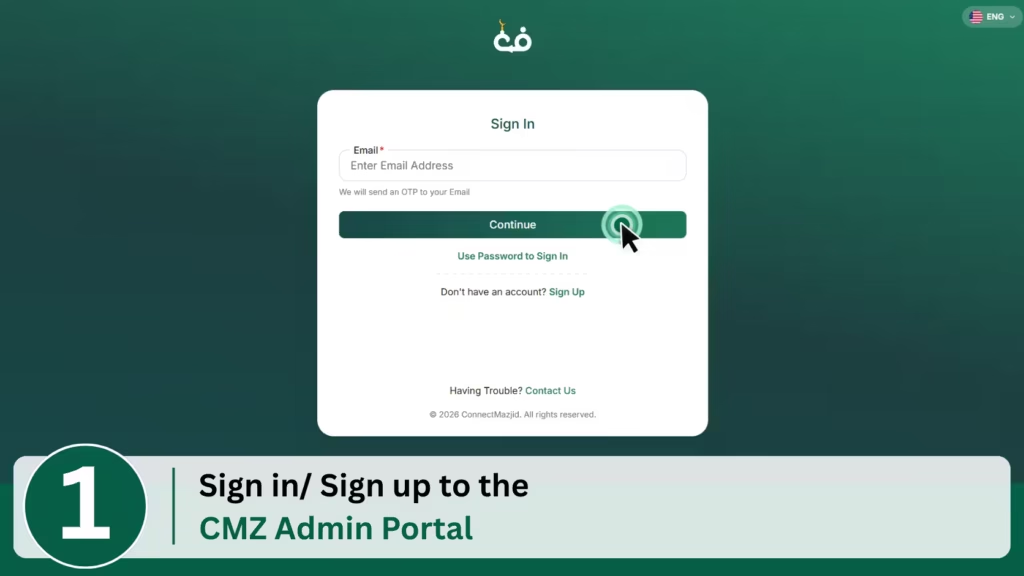
Step 1: Login to the CMZ Admin Portal
The Admin Portal is where everything about your masjid’s screens lives, your Salah and Iqamah times, announcements, themes, and every TV you connect. Before you pair a screen, it helps to already have this open, because the pairing code you’ll get from the TV in Step 2 gets entered right here.
Go to portal.cmzapp.com on your phone or laptop and log in with your masjid’s account. If your committee hasn’t registered yet, sign up free, it takes about two minutes. Once you’re in, you’ll see your dashboard: prayer times, announcements, and the screens connected to your account.
Step 2: Open Connect TV and Get Your TV Code
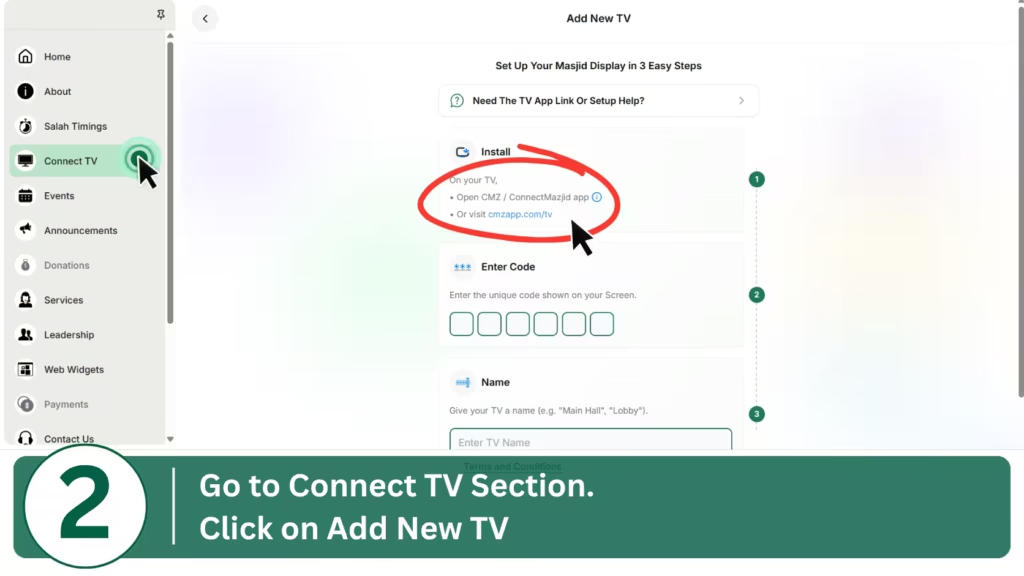
With the Admin Portal open on your mobile or laptop, turn to the TV itself. This step covers installing the app and generating the pairing code that links the physical screen to your account.
Install CMZ Masjid Prayer TV Display
Android TV / Google TV (including TCL):
- Open the Google Play Store on the TV.
- Search for CMZ TV Display.
- Install it and open the app.
Amazon Fire TV Stick:
- Open the Amazon Appstore.
- Search for CMZ TV Display.
- Install it and open the app.
Any other Smart TV (LG, Samsung, Hisense, and similar):
- Open the TV’s built-in browser.
- Visit cmzapp.com/tv.
Generate your pairing code
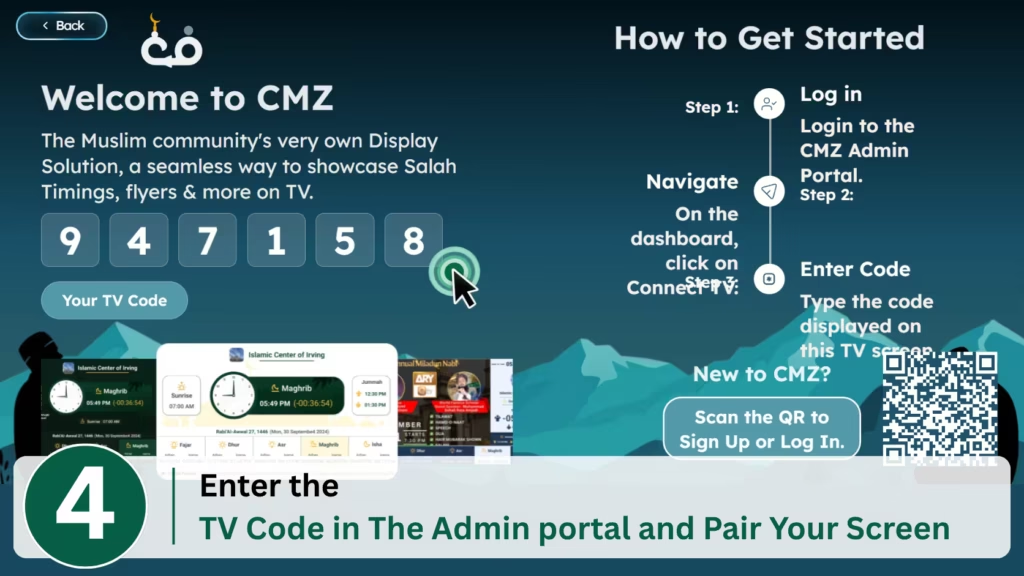
Once CMZ opens on the TV, select “For Digital Mazjid Signage” first then it will automatically generate a unique six-digit code on screen. Keep this visible; don’t navigate away from it yet. This code is what tells the Admin Portal which physical screen you’re pairing.
Step 3: Enter the TV Code and Pair Your Screen
Now switch back to the Admin Portal on your phone or laptop.
- Find the Connect TV section of the Admin Portal.
- Choose to Add new TV
- Enter the six-digit code shown on the TV.
- Give the screen a recognizable name that you can easily identify later, like:
- Main Prayer Hall
- Entrance Display
- Lobby Screen
- Sisters’ Section
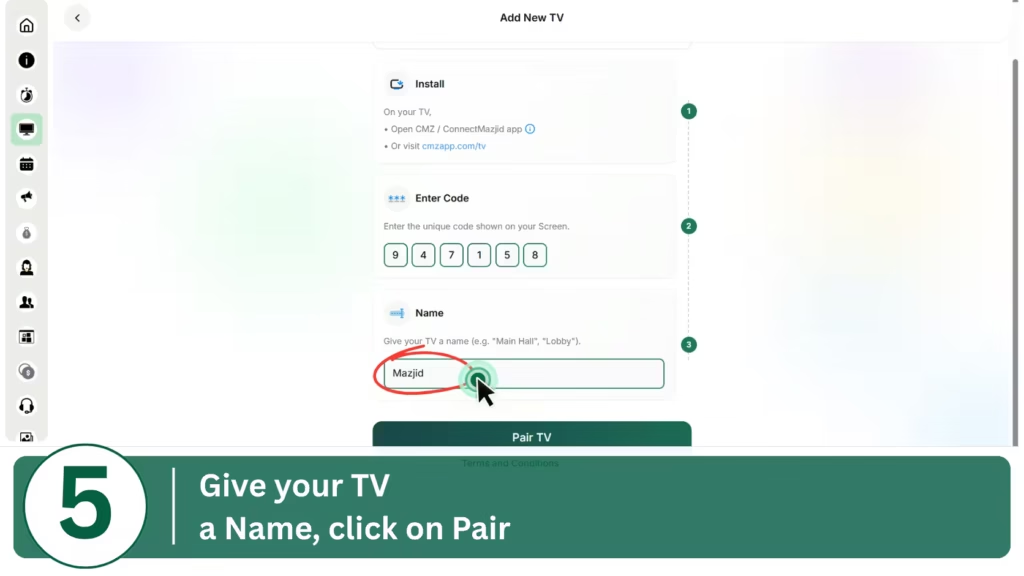
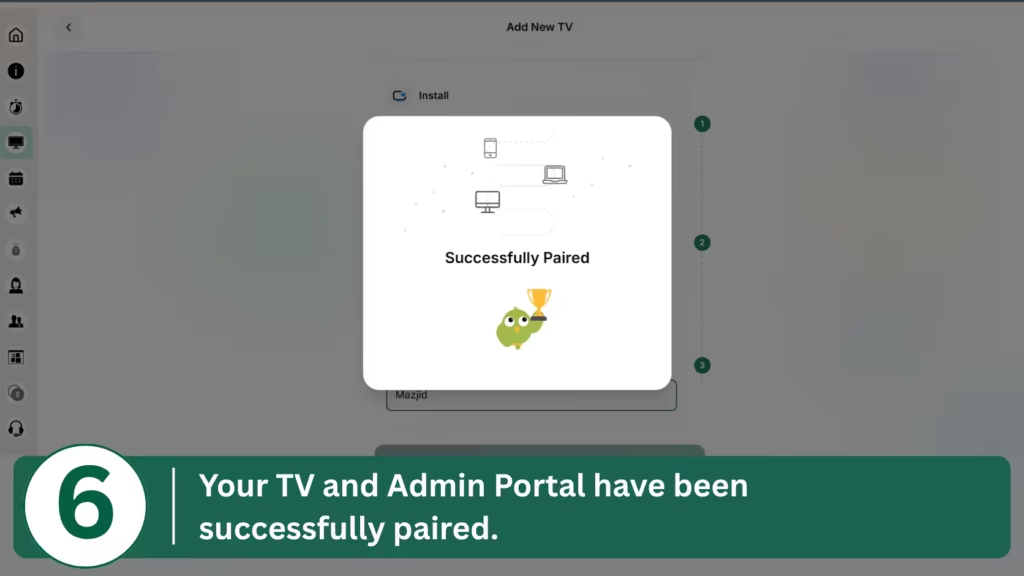
After successful pairing, the Admin Portal will display a confirmation message showing that the connection is complete. Your TV is now linked with the Admin Portal, allowing you to manage and customize the display settings from there. There is no need to restart the TV or repeat the pairing process.
Customize Your Mosque TV Display After Pairing
Pairing the screen is only the beginning. Everything your congregation sees on it is managed remotely from the Admin Portal, so once a screen is connected, nobody needs to touch the TV again. From the portal you can manage:
- Salah and Iqamah timings — set your calculation method, Asr jurisdiction, and higher-latitude rules once, and every screen matches what your community already prays for.
- Announcements and events — post a fundraiser, a janazah notice, or a weekend class, and it appears on the screen automatically.
- Flyers and a digital notice board that rotate between prayer times.
- Themes — choose from layouts like Peaceful Dawn, Luminous, Harmony, and StillCast to match your masjid’s style.
- Colors and branding — your masjid’s name and identity, not a generic template.
- Languages — run each screen in the language of the people standing in front of it.
- Community updates, including this week’s Jumu’ah Khateeb.
- Prohibited Salah Timings — show important prayer restriction periods like sunrise, zawal, and sunset with clear reminders.
- Custom QR Code — add your own QR code with custom text for donations, websites, registration forms, or any community resource.
- Slide Duration — control how long each visual stays on screen and create the perfect flow for prayer times, announcements, and community content.
- Audio Notification — play a subtle beep at Azan and Iqamah times so your community never misses the prayer transition.
- Prayer Blackout — automatically minimize distractions during Salah by turning the screen into a focused blackout based on your Salah duration.
Update any of this once, and it syncs to every connected screen within seconds.
- Need your prayer screen to keep showing Salah and Iqamah times even when the internet connection is unavailable? Learn how CMZ Masjid TV Offline Mode keeps your display running with reliable prayer timings and uninterrupted masjid updates.
Click here to learn more about CMZ Masjid TV Offline Mode.
- Want to display Salah timings without installing a TV app? CMZ also supports a browser-based masjid display system that lets you run your prayer screen directly from a supported browser.
Click here to learn how to set up CMZ’s browser-based Masjid Display System.
- Looking to add, update, or customize Salah and Iqamah timings on your masjid TV display?
Follow our detailed guide to learn how to manage prayer times and keep your community screen accurate.
Connecting Multiple TVs
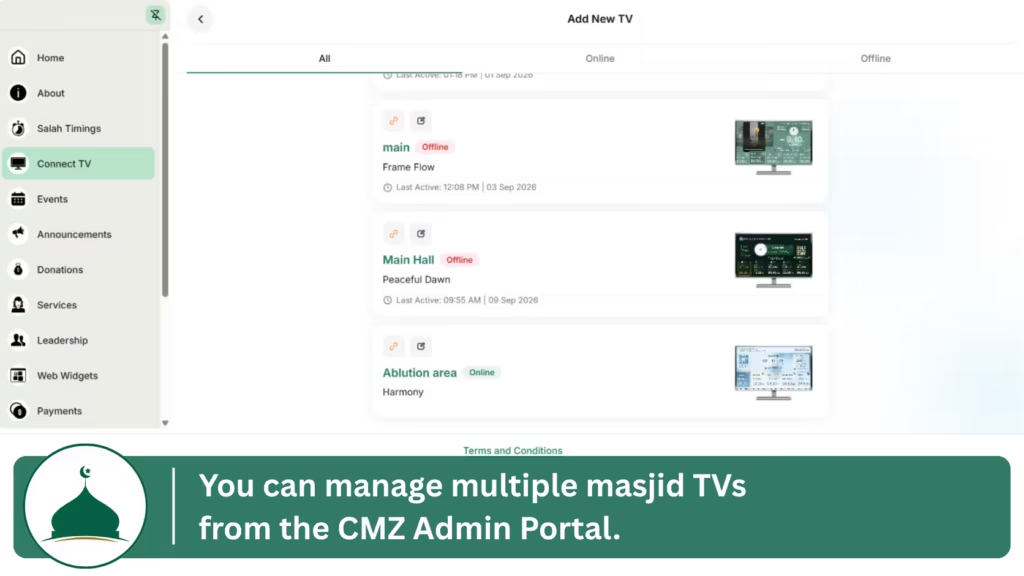
Most masjids can start with a single TV display or connect multiple screens across different areas. CMZ allows you to manage all connected displays from one Admin Portal, making it easy to control prayer times, announcements, and other content from one place.
To add another screen, repeat Step 2 and Step 3 on the new TV, install the app or open cmzapp.com/tv, generate its own six-digit code, then pair it in the portal under its own name. Each screen can even run its own theme if you want variety between areas. From the portal, you can see at a glance which screens are online, so you always know if a prayer time display has gone offline before your congregation notices.
Troubleshooting CMZ TV Connection Issues
Even a simple mosque TV display setup can hit a snag. Here are the issues volunteers run into most often, and how to fix them.
Problem: TV pairing code not showing.
Cause: The app hasn’t fully loaded, or the TV lost its internet connection mid-launch.
Solution: Close and reopen the CMZ app. Confirm the TV is connected to Wi-Fi in its network settings, then relaunch the app.
Problem: CMZ app not opening.
Cause: An incomplete installation or an outdated app version.
Solution: Uninstall the app from the TV, restart the TV, then reinstall it from the Play Store or Amazon Appstore.
Problem: TV not connecting after entering the code.
Cause: The code expired before it was entered, pairing codes are time-limited for security.
Solution: Return to the TV, let it generate a fresh code, and enter the new code in the Admin Portal right away.
Problem: Fire TV Stick issues during installation.
Cause: Fire TV Sticks sometimes need the Amazon Appstore refreshed before a new app shows up in search.
Solution: Restart the Fire TV Stick, then search for CMZ Masjid Prayer TV Display again in the Amazon Appstore.
Problem: Internet connection problems.
Cause: Weak Wi-Fi signal near the TV, or a mosque network that requires a login page.
Solution: Check the TV’s Wi-Fi settings, move the router closer if possible, or connect via an Ethernet adapter for a more stable signal.
Mosque TV Display Setup FAQs
Install the CMZ Masjid Prayer TV Display app on your TV (or open cmzapp.com/tv on a Smart TV browser if the app is not supported officially on your TV OS, then enter the six-digit code it generates into your CMZ Admin Portal to pair the screen.
This usually means the app hasn't finished loading or the TV lost its internet connection. Close and reopen the app, or confirm the TV's Wi-Fi is connected.
Mosque TV display setup in under 10 minutes, including the app download.
Yes. CMZ can connect 10+ screens on a single free account, so you can run the main hall, entrance, and sisters' section from one Admin Portal.
Yes, including Google TV and TCL sets, which have a dedicated app available on the Play Store.
Yes. CMZ Masjid Prayer TV Display is available on the Amazon Appstore for Fire TV.
Yes. Once a screen is paired, everything, prayer times, announcements, themes, is managed from the Admin Portal from any device, without ever touching the TV again.
Any solution should be ad-free, sync automatically from one dashboard, and support unlimited screens without extra hardware, which is what CMZ Masjid Prayer TV Display is built for.
This usually means Salah and Iqamah times haven't been entered yet in the Admin Portal. Log in and confirm your masjid's prayer time settings are filled in.
Yes. The entire process is three steps: install the app, get a code, and enter it in the portal, with no coding or IT background required.
Amazon Fire TV, Google TV, Android TV, and TCL have a dedicated app. Every other Smart TV, including LG, Samsung, Vizio, and Hisense, runs the display through its browser at cmzapp.com/tv.
CMZ works best with an internet connection for prayer time updates, announcements, and remote management. However, offline functionality is also available, allowing your display to continue running essential content without an active connection.
Yes, CMZ supports both portrait and landscape displays. However, the layout does not change automatically. You need to select the preferred orientation (Portrait or Landscape) from the display settings, and the content will adjust accordingly for your selected screen format.
Conclusion
Setting up a Mosque TV Display with CMZ is simple: install the app, generate your TV pairing code, and connect your screen through the Admin Portal. Once connected, your masjid can manage Salah timings, announcements, and community updates from one place.