
Mosque TV Display Not Updating? 10 Easy Fixes | CMZ
Mosque TV Display not updating? Fix outdated prayer times, missing flyers, announcements, sync issues, internet problems, pairing, and CMZ TV App errors.
You update an Iqamah time in CMZ Admin.
You look at the mosque TV.
The old time is still there.
Before restarting the TV, clearing anything, reinstalling the app, or pairing the screen again, check one thing first:
What exactly is not updating?
A missing flyer, an outdated prayer time, and an entire mosque TV display not updating can have completely different causes.
The fastest way to fix the problem is to start with the source and work outward.
Quick Fix: Check These 5 Things First
If your CMZ mosque TV display is showing old information, check these in order:
- CMZ Admin: Confirm the new information was saved correctly.
- Correct TV: Make sure you updated the screen you are actually looking at.
- Content Settings: Confirm the prayer time, flyer, event, or announcement is enabled for that TV.
- Internet: Make sure the television or connected device is online.
- Refresh CMZ: Close and reopen the CMZ TV App or reload the browser display.
If the problem continues, use the detailed checks below.
First, Identify What Is Not Updating
Different problems require different fixes.
What You See |
Entire TV is showing old information |
Prayer or Iqamah time is outdated |
Flyer is missing |
Announcement or event is missing |
One TV is outdated but other TVs work |
TV shows a pairing code |
CMZ TV App will not open |
Start Here |
Internet connection and CMZ refresh |
Salah schedule and correct date |
Flyer status and TV Display Settings |
Content settings and TV selection |
Settings and network of that specific TV |
TV connection and pairing |
Device/app troubleshooting |
Do not reset the entire display just because one piece of content is missing.
1. Confirm the Information Is Correct in CMZ Admin
Always start at the source.
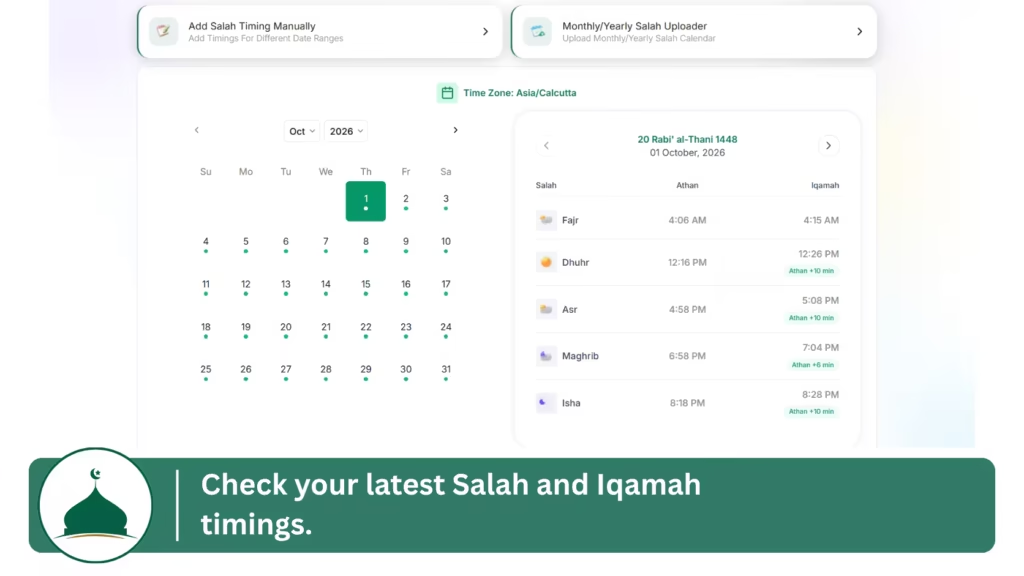
Open the setting you recently changed in the CMZ Admin Portal and confirm that the new information is still saved.
For example, if you change an Iqamah time from 7:30 PM to 7:45 PM, reopen the Salah settings and make sure 7:45 PM appears there.
Use the same check for:
- Salah times
- Iqamah times
- Jumu’ah details
- Announcements
- Events
- Flyers
- Themes
- TV Display Settings
If CMZ Admin itself still shows the old information, the television is not the problem.
Correct the information, save your changes, and then check the TV again.
2. Make Sure You Updated the Correct Mosque TV
This is easy to overlook when your masjid has several connected screens.
You may have separate TVs for:
- Main Prayer Hall
- Sisters’ Prayer Hall
- Entrance
- Lobby
- Community Hall
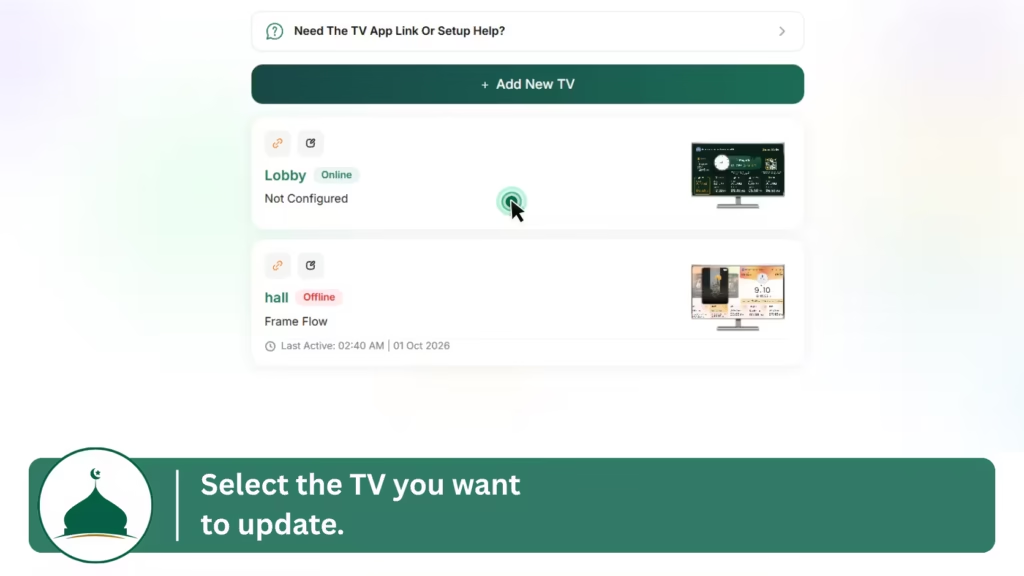
Go to:
CMZ Admin Portal → Connect TV
Select the exact television that is not updating.
Each connected mosque TV can have its own configuration. A change made to the Sisters’ Hall TV settings will not necessarily affect the Main Prayer Hall display.
Use Clear TV Names
Avoid names such as:
- TV 1
- TV 2
- TV 3
Instead, use location-based names such as:
- Main Prayer Hall
- Sisters’ Hall
- Entrance TV
- Lobby Screen
Clear TV names make managing multiple mosque TV displays much easier and reduce the chance of changing the wrong screen.
3. Check the Specific Content or Setting
If the TV is working but only one thing is missing, troubleshoot that item instead of resetting the entire display.
Prayer or Iqamah Time Not Updating?
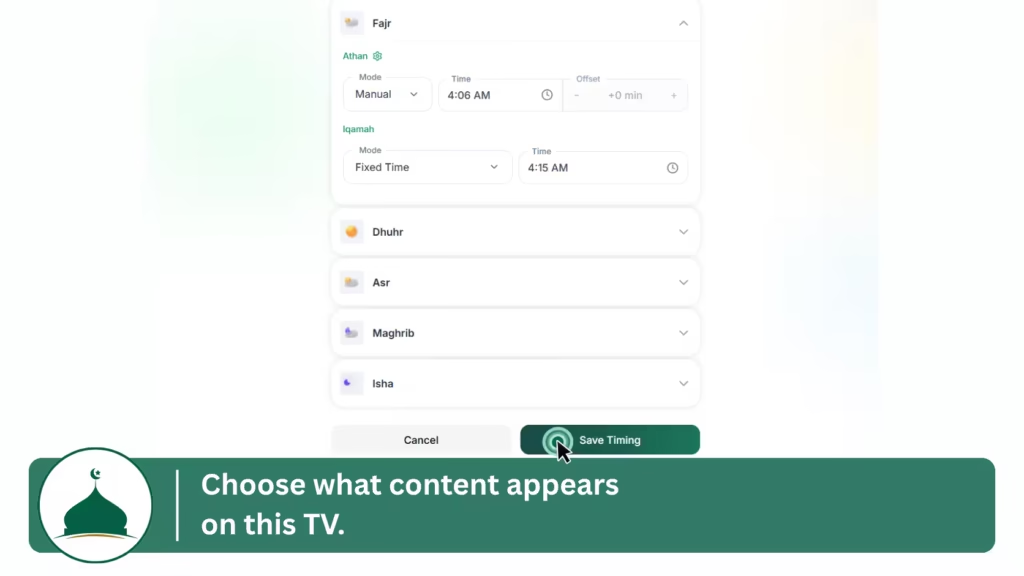
Open the relevant Salah settings inside CMZ Admin.
Confirm:
- The correct date
- Athan/Salah time
- Iqamah time
- Any schedule you recently changed
Pay particular attention when:
- Tomorrow’s Iqamah time changes
- A new seasonal schedule begins
- A monthly timetable changes
- A yearly prayer timetable has been updated
- Local date or time settings have changed
Compare CMZ Admin and the mosque TV side by side.
If CMZ Admin shows the wrong time:
Correct the Salah schedule first.
If CMZ Admin shows the correct time but the TV shows an older time:
Continue to the internet and refresh the checks below.
Check the Exact Date
A common mistake is updating the correct prayer but the wrong date.
For example, tomorrow’s Iqamah time may already be entered while today’s TV should still display the existing time.
Always compare the exact date shown in CMZ Admin with the date you expect on the TV.
4. Flyer, Announcement, or Event Not Showing?
If Salah timings are updating correctly but a flyer, announcement, or event is missing, the TV connection may already be working normally.
Check the content itself.
Confirm the Content Is Active
Open the relevant flyer, event, or announcement in CMZ Admin.
Make sure it is active and available for display.
Uploading content does not automatically mean that every connected TV should show it.
Check the TV’s Display Settings
Go to:
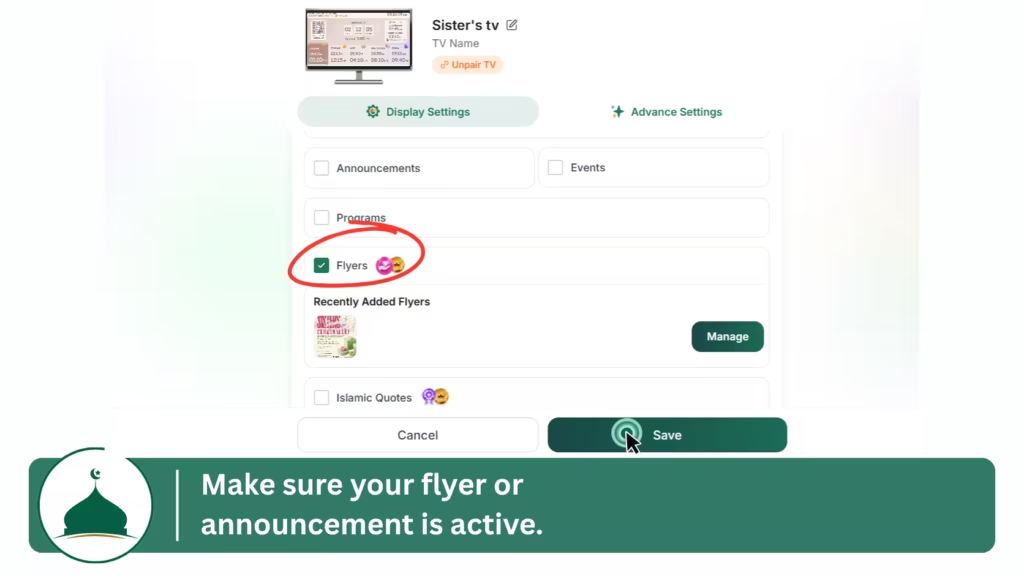
CMZ Admin Portal → Connect TV → Select TV → Display Settings
Make sure the relevant content type is enabled for that television.
For example, if a flyer is not appearing:
- Confirm the flyer is active.
- Open Connect TV.
- Select the affected television.
- Open Display Settings.
- Confirm Flyers are enabled.
- Select the required flyer where applicable.
- Save your changes.
This is particularly important if different TVs inside your mosque show different content.
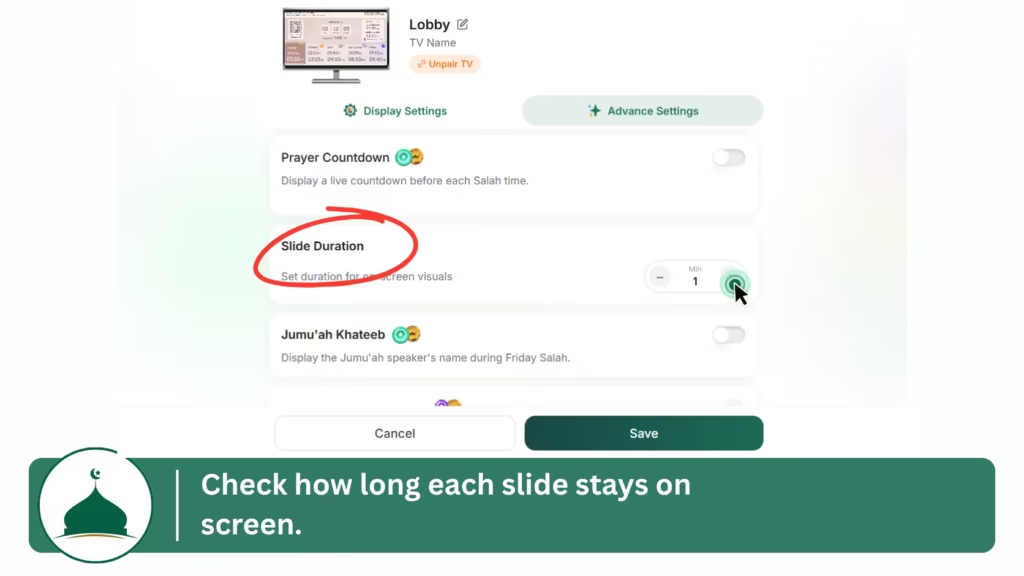
5. Give the Slide Rotation Time to Reach Your Content
Sometimes nothing is broken.
The content simply has not appeared yet.
Depending on the selected layout and settings, a CMZ mosque TV display may rotate between content such as:
- Salah timings
- Announcements
- Events
- Flyers
- Other configured slides
If you check the television for only a few seconds, the slide you are looking for may still be waiting in the rotation.
Allow the current slide to finish and watch the next few slides.
You can also review the relevant Slide Duration settings under the TV’s Advanced Settings.
If prayer times are appearing correctly and only one flyer or announcement seems missing, always check the full slide rotation before changing the TV connection.
6. Check the TV’s Internet Connection
A CMZ display needs a working connection to receive new information and settings.
A screen may still appear normal while showing information that was previously loaded, so do not assume the internet is working simply because something is visible on the TV.
Test the Internet Directly on the TV
On the same Smart TV, Fire TV, Google TV, Android TV device, or connected streaming device:
- Open another internet-connected app.
- Open a website where applicable.
- Check the network status in the device settings.
If those services are also not working, reconnect the device to Wi-Fi or Ethernet first.
Then reopen CMZ and check the display again.
Did Your Mosque Wi-Fi Recently Change?
Check whether someone recently changed the:
- Wi-Fi name
- Wi-Fi password
- Router
- Internet provider
- Network configuration
The television may still be trying to connect using the previous network details.
Reconnect the device to the current mosque network before changing anything inside CMZ Admin.
7. Refresh the CMZ Display
If:
- CMZ Admin contains the correct information,
- you selected the correct TV,
- the content is enabled,
- and the television has internet access,
refresh the display before trying more disruptive troubleshooting steps.
Using the CMZ TV App
- Close the CMZ TV App.
- Open it again.
- Allow the display to load.
- Check whether the latest content appears.
If needed, restart the TV or connected Fire TV, Google TV, or Android TV device and reopen CMZ.
A simple restart should come before re-pairing or reinstalling the application.
8. Using CMZ Through a Smart TV Browser?
If your mosque uses the browser-based CMZ display instead of the native CMZ TV App, use these additional checks.
- Confirm the television has internet access.
- Reload the CMZ TV page.
- Close and reopen the browser.
- Check that the TV’s date and time are correct.
- Open the CMZ TV page again.
If the browser continues showing old information and your television provides the option, clearing the browser cache can be used as a later troubleshooting step.
Do this only after confirming the information inside CMZ Admin is correct.
If CMZ Admin contains old information, clearing the TV browser will not solve the actual problem.
9. When Should You Pair the CMZ TV Again?
Re-pairing should not be your first troubleshooting step.
You normally do not need to pair the TV again just because:
- One flyer is missing
- One announcement is not showing
- An Iqamah time appears outdated
- A slide has not appeared yet
Those problems are more likely to involve content, settings, connectivity, or refresh issues.
Signs That the TV Connection May Have Been Lost
Check pairing when:
- The television has returned to the pairing screen.
- A new pairing code is displayed.
- The screen is no longer connected to the masjid.
If the TV shows a pairing code:
- Open CMZ Admin Portal.
- Go to Connect TV.
- Choose Add New TV.
- Give the television a clear name.
- Enter the current pairing code displayed on the TV.
- Complete the connection process.
Always use the current code shown on the television rather than an older pairing code.
10. Reinstall the CMZ TV App Only as a Last Step
Outdated content does not automatically mean the application needs to be reinstalled.
Reinstallation makes more sense when:
- The CMZ TV App does not open.
- The app repeatedly crashes.
- The application itself appears to be malfunctioning.
- Restarting the TV or connected device does not resolve the app problem.
On a supported Android TV, Google TV, or Fire TV device:
- Remove the CMZ TV App.
- Restart the device.
- Install CMZ again from the supported app store.
- Open the application.
- Follow the connection instructions if pairing is required.
If your Smart TV does not support the native CMZ TV App, a compatible browser-based display can also be used where supported.
Mosque TV Display Troubleshooting Checklist
Use this simple order whenever your mosque TV display is not updating:
1. Check CMZ Admin
Is the correct information saved?
2. Check the Correct TV
Are you editing the same screen you are looking at?
3. Check the Content
Is the prayer schedule, flyer, event, announcement, or feature configured correctly?
4. Check the Internet
Can the TV receive new information?
5. Refresh CMZ
Close and reopen the app or reload the browser display.
6. Check Pairing
Only if the screen has actually lost its CMZ connection.
7. Reinstall the App
Only if the application itself is not functioning correctly.
Following this order helps you identify the actual problem without unnecessarily resetting your mosque TV setup.
How to Prevent Mosque TV Display Sync Problems
A few simple habits can make managing your mosque screens easier.
Give Every TV a Clear Name
Use names that identify the physical location:
- Main Prayer Hall
- Sisters’ Hall
- Lobby
- Entrance
- Community Hall
This makes it much easier to select the right television inside Connect TV.
Manage Updates From CMZ Admin
CMZ allows supported prayer times, Iqamah schedules, announcements, events, flyers, and connected TV settings to be managed centrally.
When something looks wrong, start with the Admin Portal.
If the information is correct there, move on to the affected television.
Keep Mosque TVs Connected to Reliable Internet
Weak or unstable Wi-Fi can prevent a display from receiving recent changes reliably.
Where possible, keep the Smart TV or connected streaming device within a reliable network range.
Check Screens After Major Prayer Schedule Changes
After important updates such as:
- Ramadan timings
- Seasonal Salah schedules
- Jumu’ah schedules
- Major Iqamah changes
- New monthly or yearly timetables
check a physical display after saving your changes.
A quick check helps confirm that your mosque congregation is seeing the intended information.
Still Not Updating?
If your mosque TV display is not updating, do not start by resetting everything.
Start with the information inside CMZ Admin.
Then check:
Correct TV → Content Settings → Internet → Refresh → Pairing → Reinstallation
This makes it much easier to identify whether the problem is coming from the schedule, an individual display setting, the television’s network connection, or the CMZ application itself.
CMZ helps masjids centrally manage prayer times, Iqamah schedules, announcements, events, flyers, and connected TV displays so administrators can keep information organized across their mosque screens.
Still having trouble with your CMZ display? Contact CMZ Support and share the affected TV name, device type, what is not updating, and a photo of the screen.
Need another mosque screen? Explore CMZ Masjid TV and connect additional displays through the CMZ Admin Portal.
First check the Salah and Iqamah schedule in CMZ Admin and confirm the correct date. If CMZ Admin shows the correct prayer times but the TV still shows old information, check the TV’s internet connection and refresh the CMZ display.
Confirm that the change was saved in CMZ Admin, make sure you selected the correct television under Connect TV, check that the required content is enabled, and verify that the TV has internet access. Then restart or refresh the CMZ display.
Check the Iqamah time and date inside CMZ Admin first. If the new time is correctly saved there, confirm that you are checking the correct connected TV and refresh the display.
Each connected screen can have its own settings and network connection. Go to Connect TV, select the affected television, and troubleshoot that screen individually instead of changing every TV.
Confirm that the flyer is active, then open the affected TV’s Display Settings and make sure Flyers are enabled and the required flyer is selected where applicable. Also allow enough time to see the full slide rotation.
Check that the announcement is active and configured for the correct TV. If other content is updating normally, the problem is more likely related to that announcement’s settings than the television connection.