
Add Prayer Times to Mosque TV: 7 Checks to Avoid Errors
Add prayer times to Mosque TV without timetable error by verifying your masjid’s approved schedule before publication. A digital screen can show timings but cannot decide which timetable your community follows.
Imagine a volunteer preparing a schedule. The spreadsheet looks complete, yet a seasonal Asr Iqamah change starts one day early. An approval check catches the mistake before publication.
This guide focuses on timetable quality control, not TV installation or troubleshooting. Use these seven checks to make sure the right information reaches your display.
Why Approval Matters Before You Add Prayer Times to Mosque TV
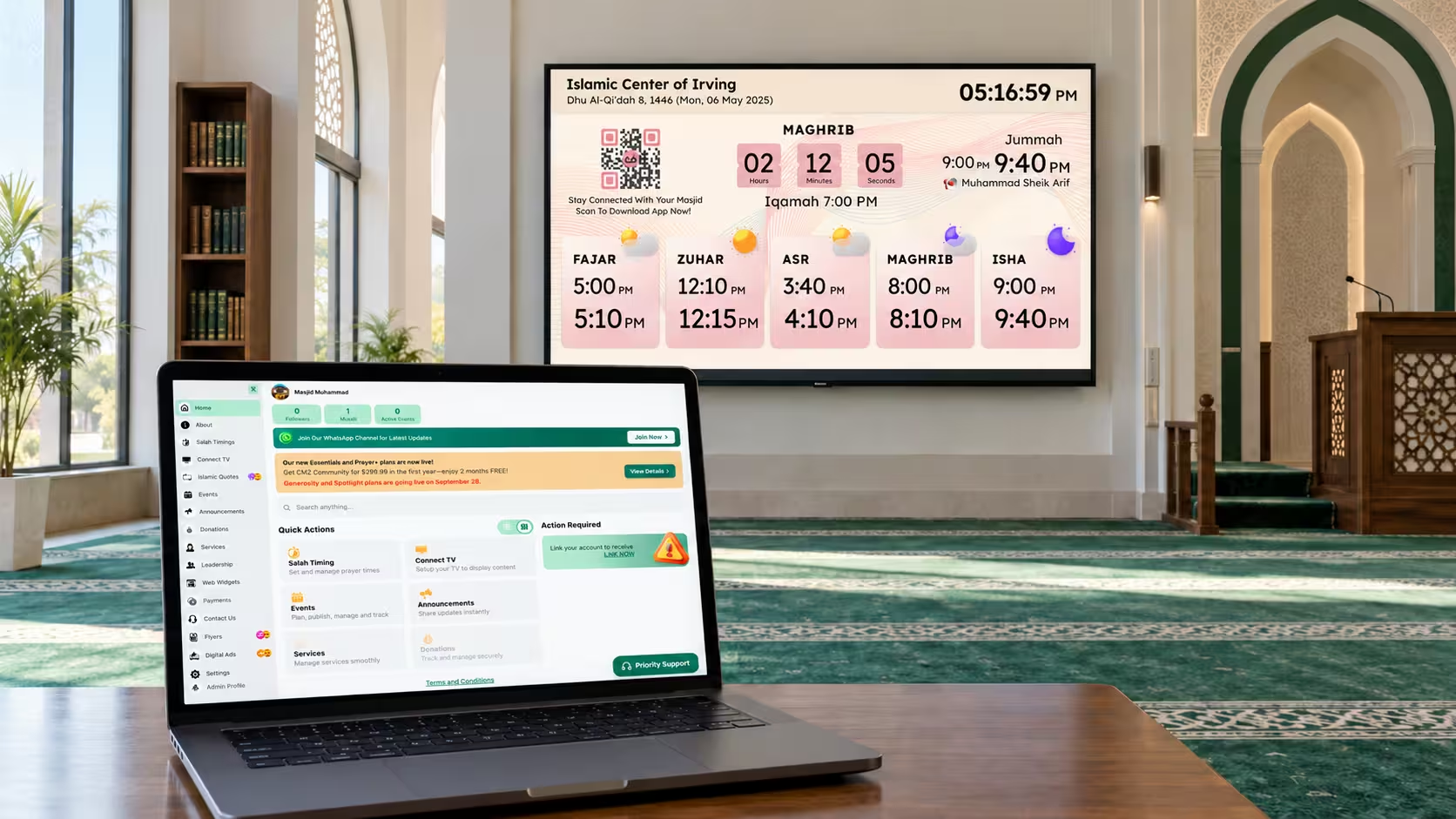
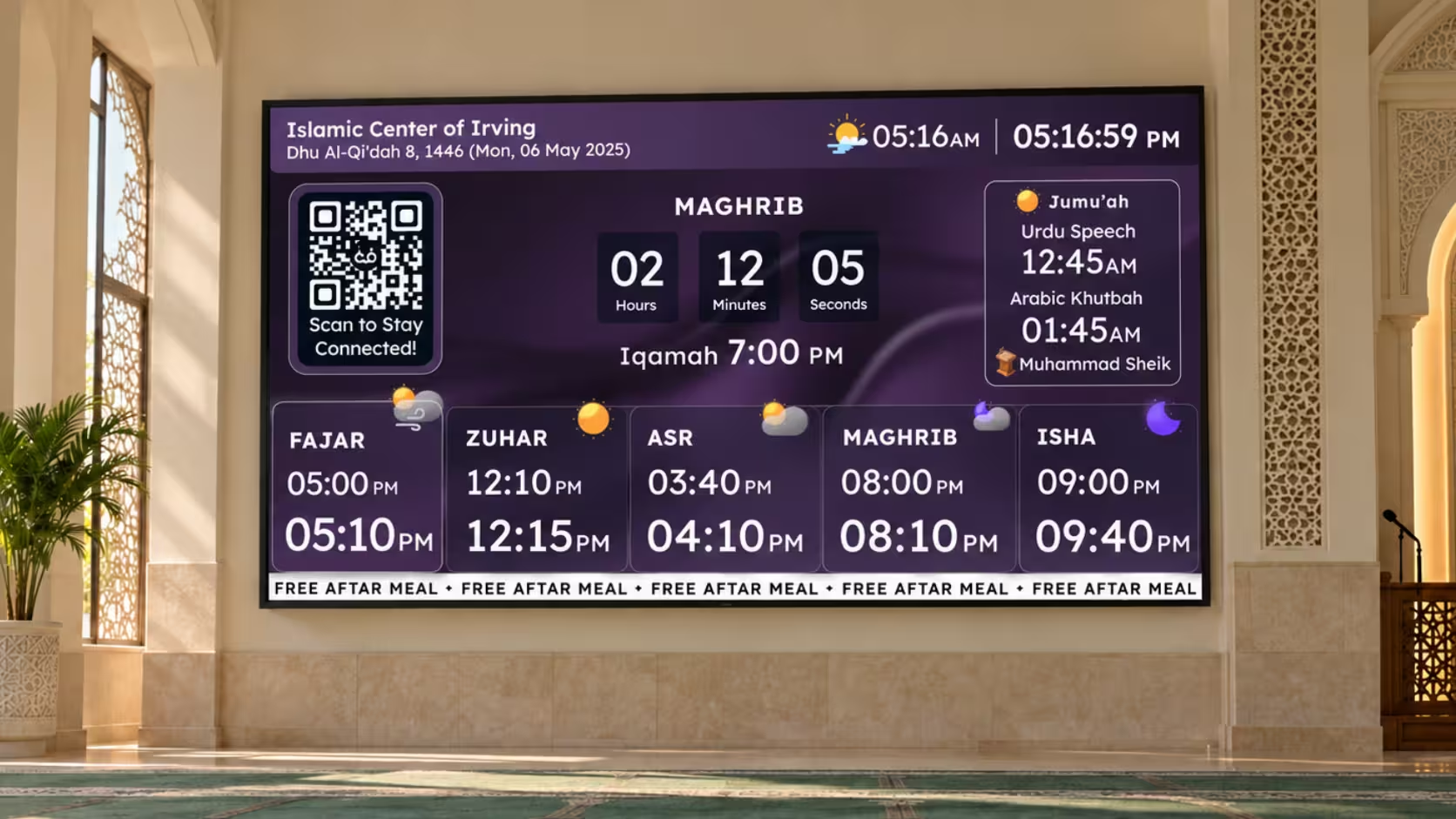
When you add prayer times to Mosque TV, the screen displays exactly what it receives. It cannot tell whether a figure was approved, outdated, or typed in a hurry. Worshippers, however, trust it. They plan their arrival around the Iqamah shown, so one small mistake can affect the whole congregation. A short approval routine protects that trust and saves your volunteers from awkward corrections later.
1. Identify the One Approved Timetable
Committee members may have different copies of the same schedule. One file might contain last month’s corrections while another includes an unapproved change. Without a single source of truth, even careful volunteers can publish the wrong numbers with good intentions.
Before publishing, identify the authoritative version. Record its month or year, approval date, approving person, and storage location. Give it a recognizable name, such as Masjid_Timetable_Nov_2026_Approved.xlsx.
Archive older versions so volunteers do not accidentally reuse them. If a change is requested later, prepare a revised copy and obtain approval again.
2. Verify Dates When Iqamah Timings Change
An Iqamah time can be correct but assigned to the wrong day. That makes the timetable inaccurate even when numbers look familiar.
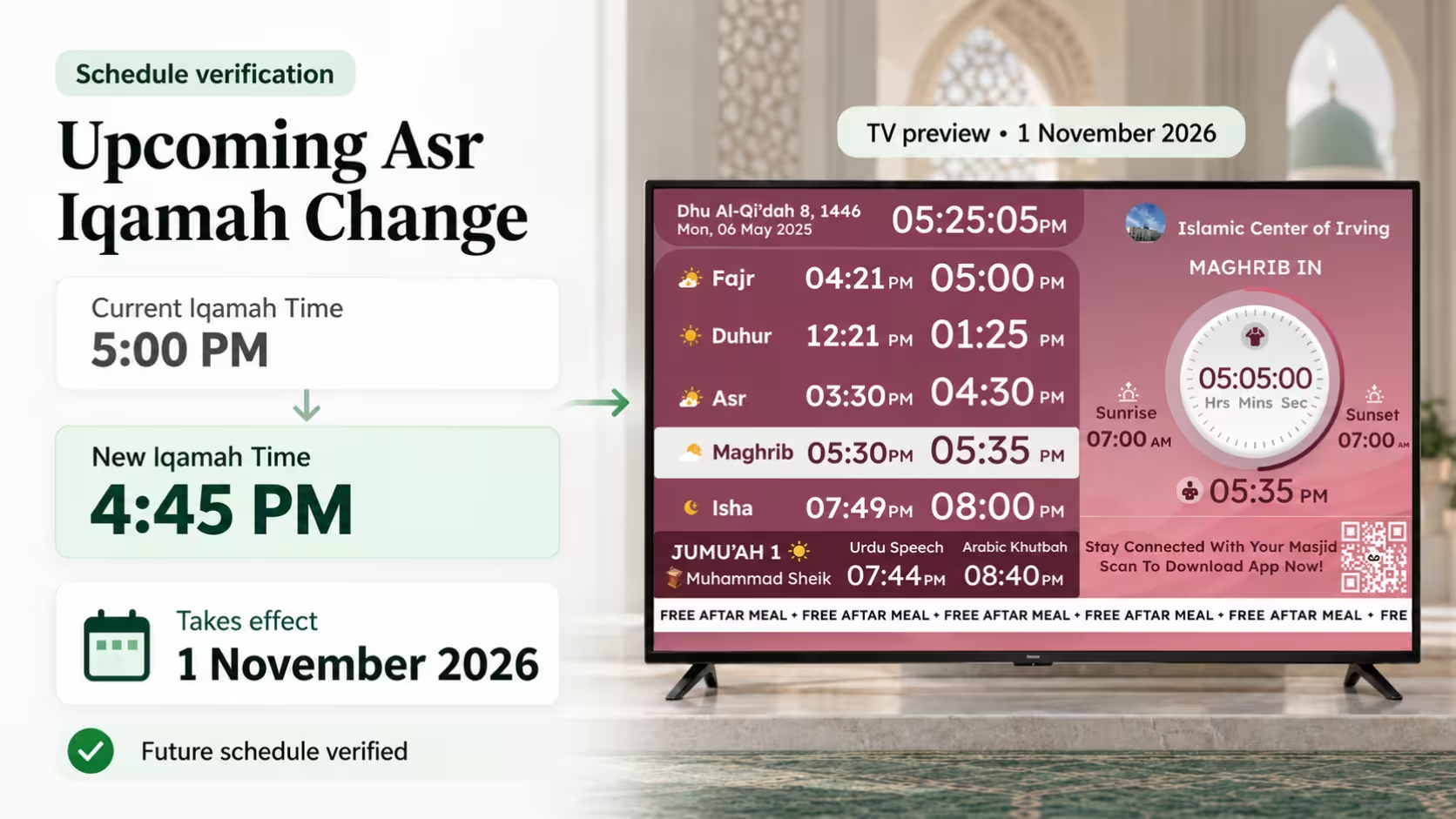
For example, your committee may approve Asr Iqamah at 5:00 PM through November 14 and 4:45 PM beginning November 15. These are illustrative timings, not prayer-time recommendations.
Check both sides of each transition. Confirm when the old timing ends and when the new one begins. Look for missing dates, duplicate entries, and overlapping instructions. A useful habit is to ask what the screen should show the day before and the day after every change.
Pay special attention to seasonal changes, Ramadan schedules, and revised Friday arrangements.
3. Audit the Excel or CSV File
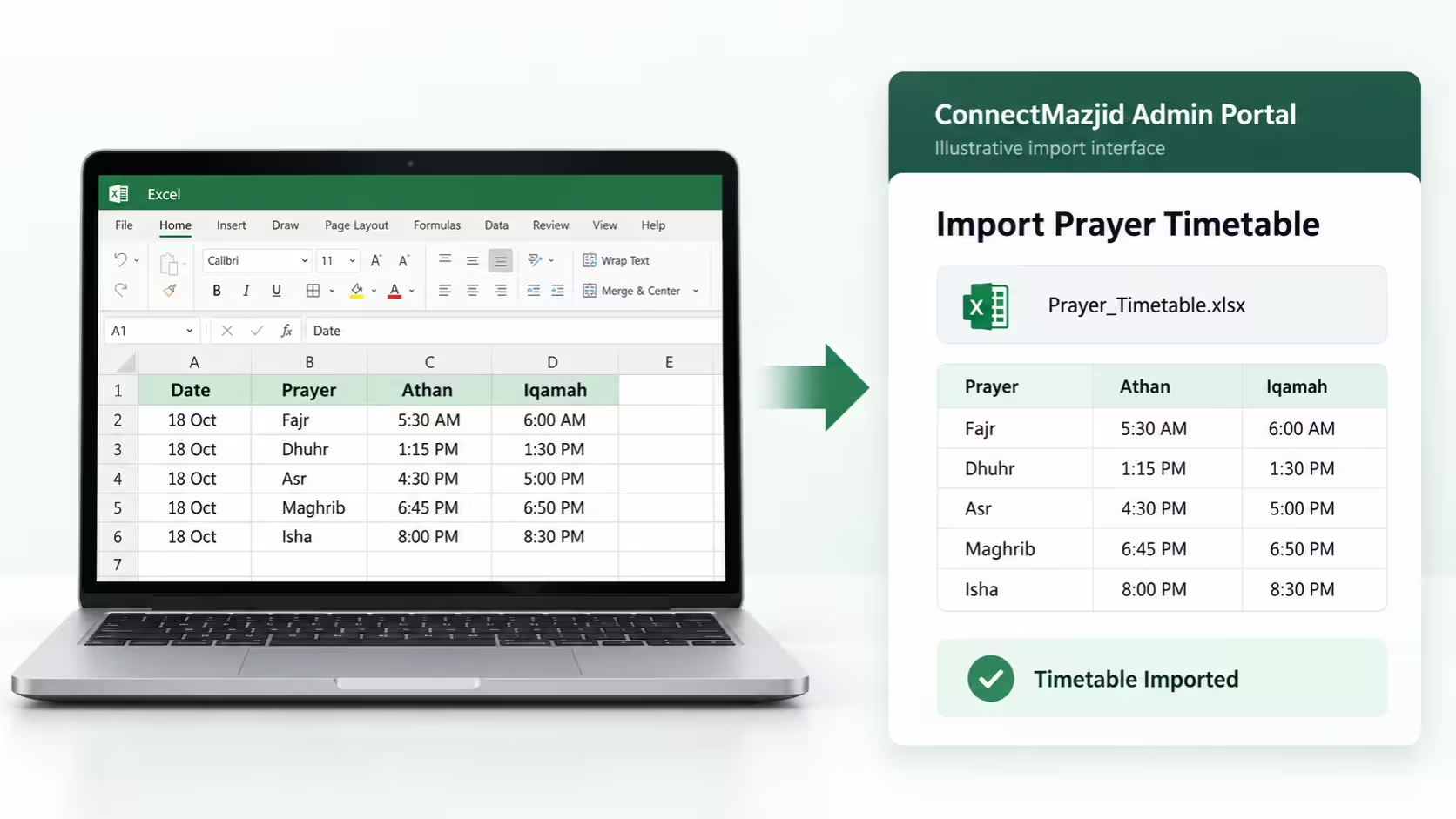
A neat spreadsheet is not necessarily an accurate one. Copy-and-paste errors, blank cells, and incorrect date formats can survive several rounds of editing.
Review these fields before importing a timetable:
- Dates: complete, chronological, and without duplicates.
- Athan: correct daily times according to the approved source.
- Iqamah: correct congregational times and transition dates.
- Jumu’ah: approved Friday information, where maintained separately.
- Exceptional days: clearly identified and reviewed.
Compare several entries directly with the imam-approved source, including dates from different months. Investigate unexpected jumps rather than automatically correcting them; some changes may be intentional.
If you are unsure how to open or save a CSV correctly, Microsoft’s guide on importing and exporting text and CSV files explains the process step by step.
ConnectMazjid supports Excel and CSV timetable imports, so you can add prayer times to Mosque TV from your existing spreadsheet instead of retyping every date. Importing a file, however, does not replace reviewing its contents.
Want to see how your verified timetable can appear on your masjid screen? Explore our step-by-step guide to displaying Salah and Iqamah times on TV and discover how to take your approved schedule from spreadsheet to display.
4. Use a Repeatable Approval Checklist
Verbal confirmation is easy to forget, especially when volunteers rotate. A short written checklist makes every review consistent.
Before publication, confirm that the approved period, five daily prayers, Athan and Iqamah labels, Iqamah change dates, and Jumu’ah details have been checked. Record the reviewer’s name and review date.
You can keep this checklist in a shared document or alongside the timetable spreadsheet. The purpose is not paperwork for its own sake. It creates a clear answer when someone asks, “Was this schedule checked?” It also means your team can add prayer times to Mosque TV with confidence, knowing a second person has looked at the numbers.
5. Separate Approval From Publication
The person updating the TV should not have to guess whether a timetable change is authorized.
Decide who approves timings and who publishes them. An imam or designated committee member might authorize a change, while an administrator updates the approved information in ConnectMazjid’s Admin Portal.
In a small masjid, one volunteer may perform several roles. Even then, approval should be explicit. For last-minute requests, confirm the new time and effective date before editing the timetable. Whoever will add prayer times to Mosque TV should always know whose confirmation counts.
What happens when your TV shows the new Iqamah time, but your website still shows the old one? Learn 3 simple ways to keep your masjid app, website, and TV displays in sync so your community can find consistent prayer information across connected platforms.
6. Maintain a Simple Change Log
When the timing changes, record what changed. Without a log, volunteers may struggle to distinguish an authorized adjustment from an accidental edit.
A useful entry includes the prayer, previous time, new time, effective date, approver, and publication status.
For example: “Fajr Iqamah: 6:15 AM to 6:00 AM, effective November 10; committee approved; awaiting publication.” This is an example only.
Keep the log with your approved files. It provides context for new volunteers and makes later reviews faster. Over time, it also becomes a reliable history your committee can refer to each time it needs to add prayer times to Mosque TV for a new season.
7. Sign Off Before the Schedule Goes Live
Complete one final handover check. Confirm that the file selected for publication matches the approved version. Recheck the first and last dates, every scheduled transition, and any special Friday information.
Then record final approval and give the authorized administrator the correct file. After publication, compare a sample of displayed dates and timings with that same approved source. This last comparison is the moment you add prayer times to Mosque TV for real, so it deserves a calm, unhurried look.
Frequently Asked Questions
Who should approve the timetable?
Your masjid should designate an imam or authorized committee member. The administrator publishing timings should use that approved version.
Can I add prayer times to Mosque TV from an Excel file?
Yes. ConnectMazjid supports Excel and CSV timetable imports, which reduces repeated entry. Review the file’s values before importing, because missing dates and incorrect timings still need a human check.
Can Excel imports prevent every error?
No. Importing reduces repeated entry, but missing dates and incorrect values still need human review.
What if an error is found after approval?
Confirm the correction with the authorized person, update the version and change log, and review affected dates before publishing.
Add Prayer Times to Mosque TV With One Trusted Schedule
To add prayer times to Mosque TV without timetable error, start with source accuracy, documented approvals, and a reliable handover process. These habits reduce confusion and help volunteers publish the timings your community already trusts.
Your masjid deserves a prayer display that reflects its approved timetable without unnecessary administrative work. ConnectMazjid helps administrators manage Salah and Iqamah timings through one central portal, with Excel and CSV import support for existing schedules.
Ready to add prayer times to Mosque TV from your approved timetable?
Stop juggling spreadsheets and repeated manual updates. Bring your approved Salah and Iqamah schedule into one convenient platform and make it easier for your community to stay informed.
Create Your FREE ConnectMazjid Account & Get Started Today →